
Home: your week at a glance
What the home page shows you each day, and where to click to act on what matters this week.
The home page answers one question: what needs your attention today? In a minute you see what is closing, what has just been published and what is waiting for your reply.
This week, for you
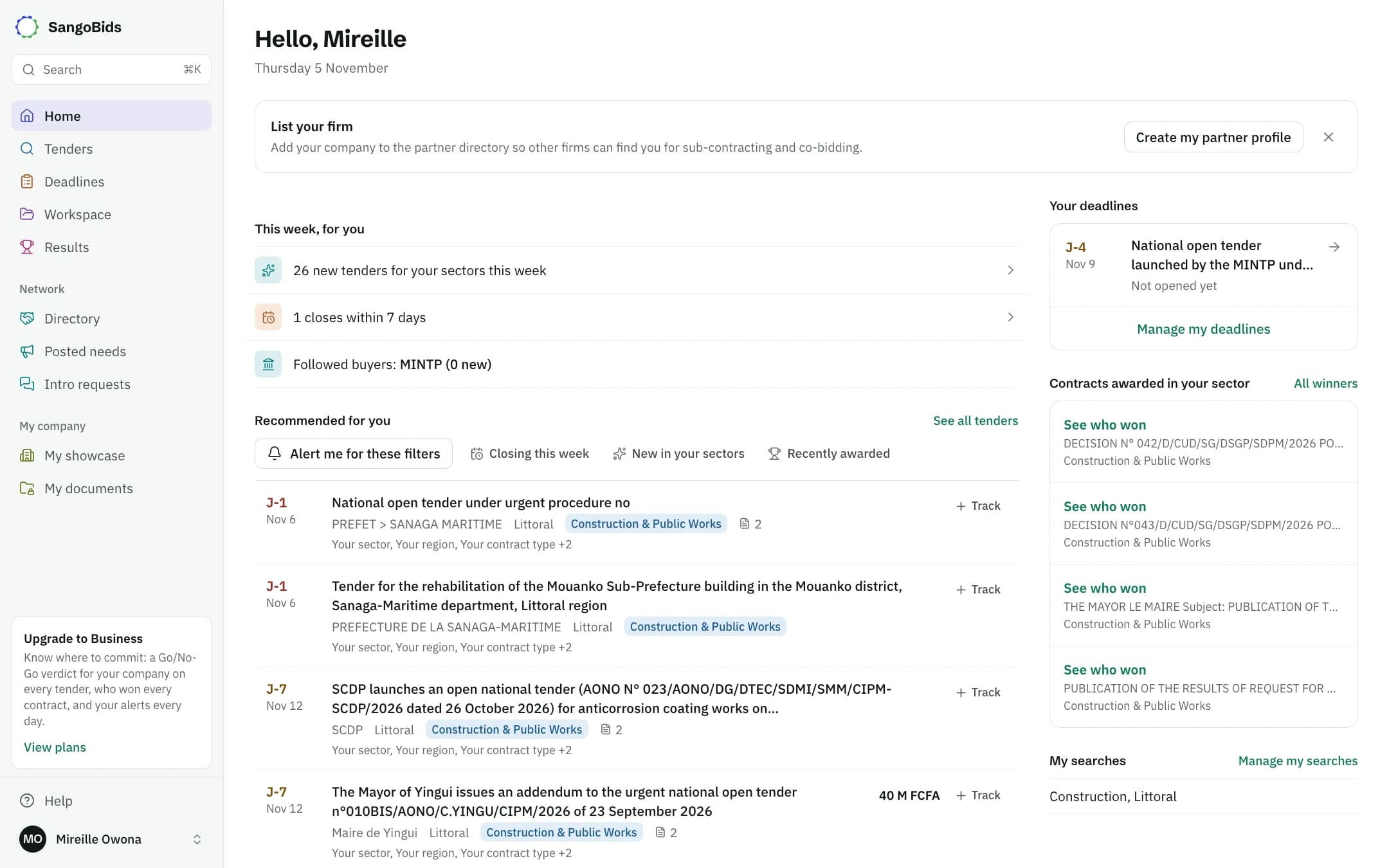
Computer
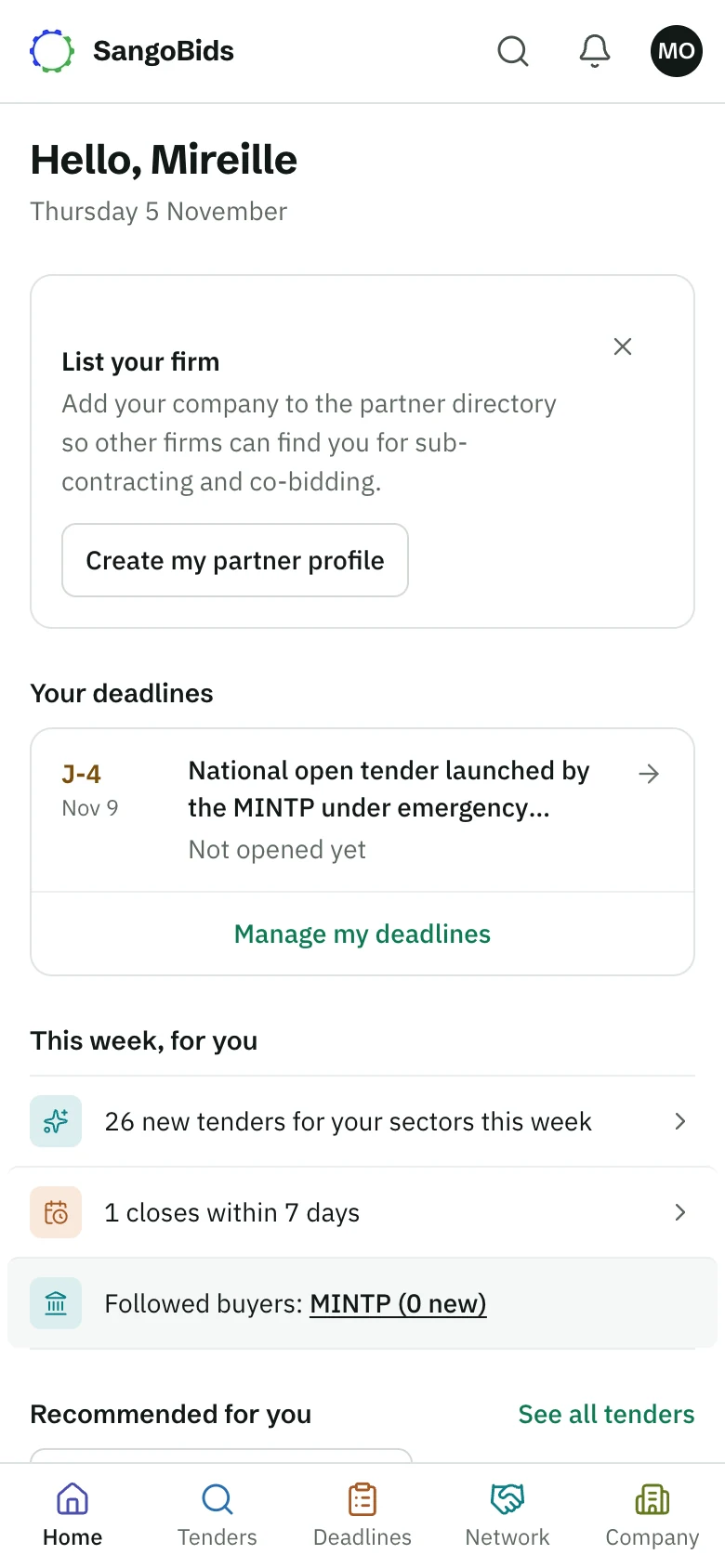
Phone
Lines that would read zero do not appear. You may see:
- New tenders in your sectors published this week. Opens the list, newest first.
- What closes within 7 days among the tenders you track. Opens your deadlines.
- Your company page: how many times it was viewed, or the invitation to publish it.
- Intro requests waiting for your reply.
- The buyers you follow, and whether they have published.
On a phone, your next deadline comes before this block: it is often what you come back for.
Above it, one suggestion shows at a time: complete your profile, or the first-steps list. Close it with one click if you do not need it.
Recommended for you
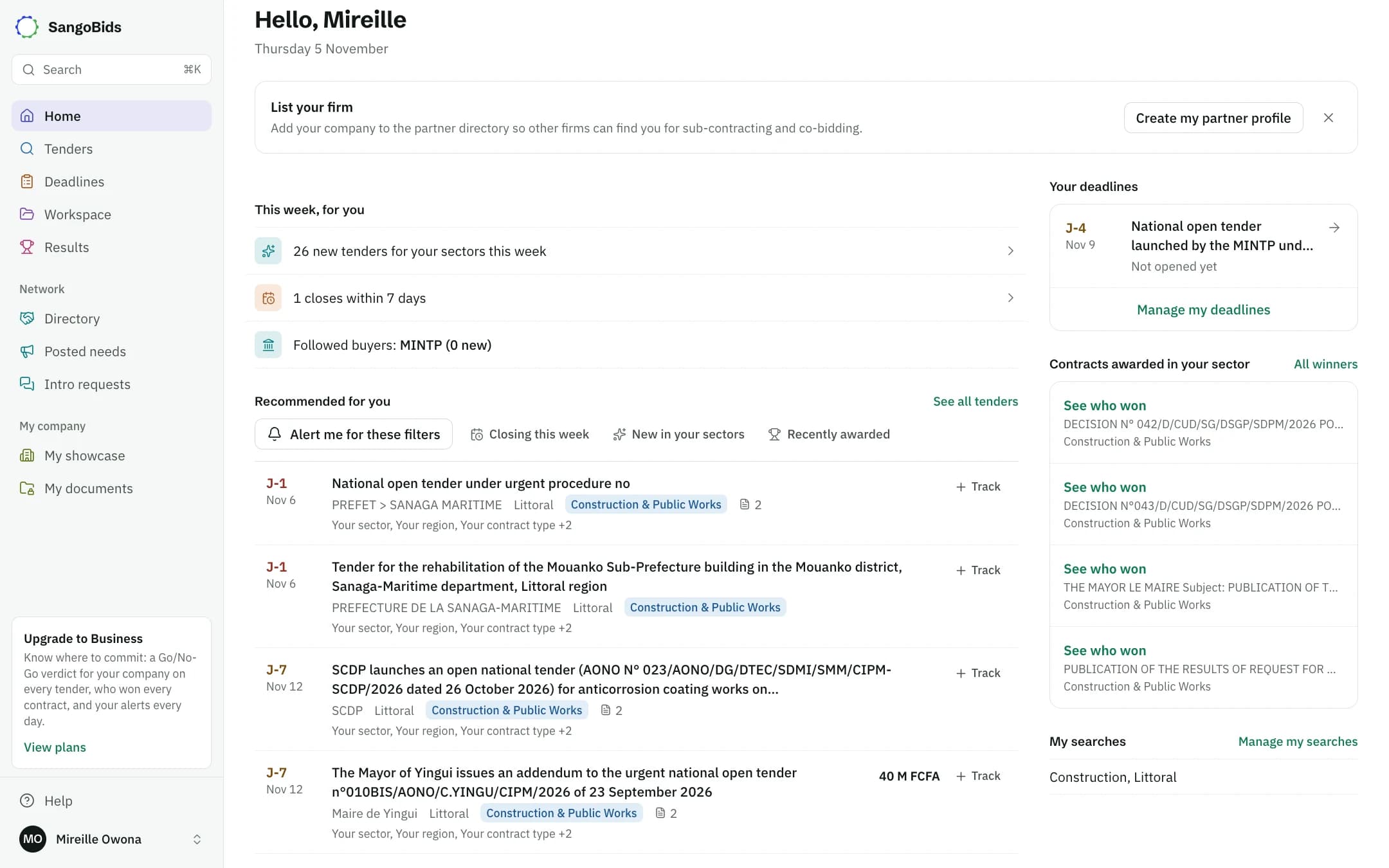
Computer
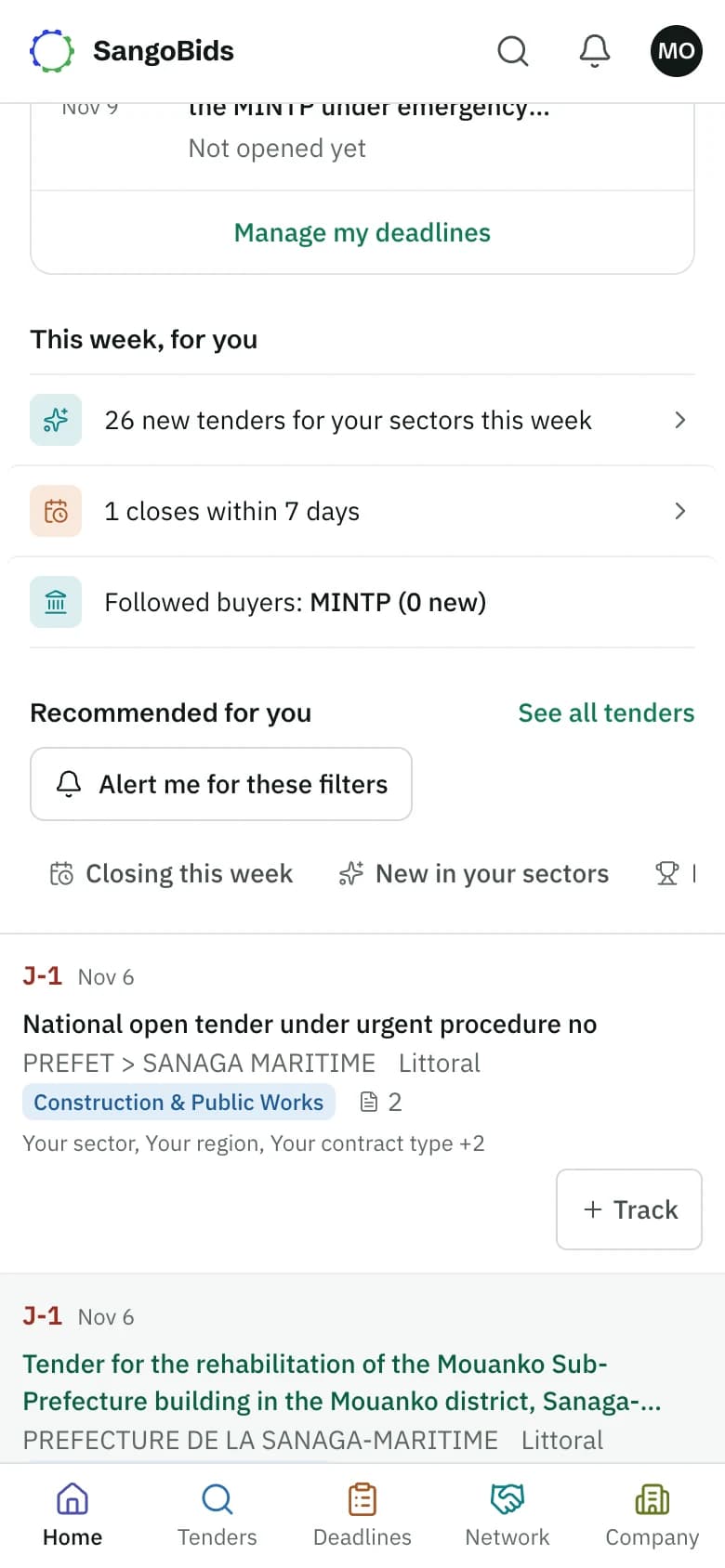
Phone
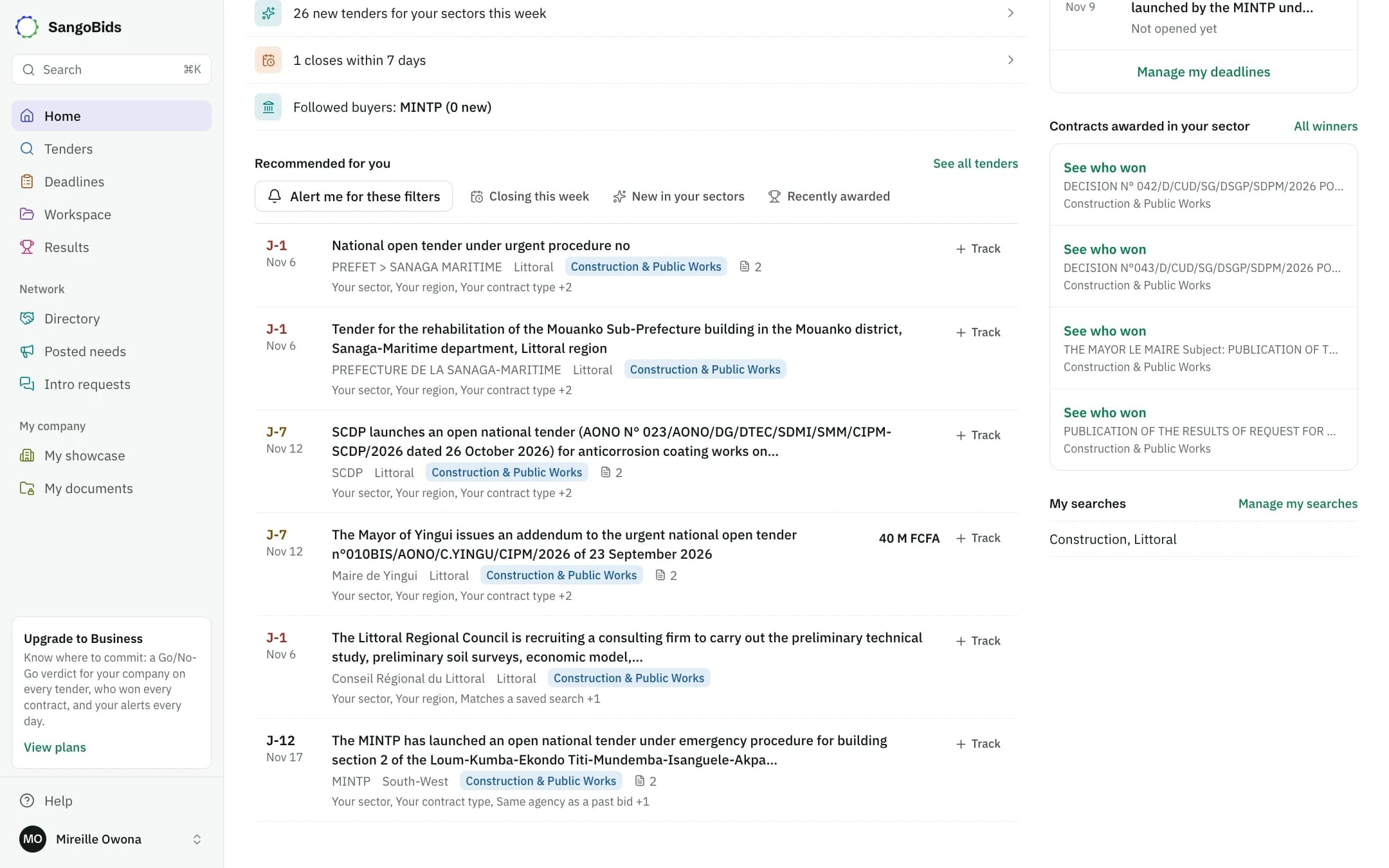
The list shows the open tenders that best fit your profile. The countdown on the left (J-7) is the number of days left before the deadline.
Change the angle
Closing this week, New in your sectors and Recently awarded open the full list with that sorting.
Track a tender
Track, on the row, adds it to your deadlines, with a reminder 3 days and then 1 day before the deadline.
Create an alert
Alert me for these filters saves your search: new notices come to you without searching again.
On the side
On a computer these blocks are on the right. On a phone they follow the list.
- Your deadlines: the most urgent tracked tender, and Manage my deadlines.
- Contracts awarded in your sector: who just won what.
- My searches: your saved searches, one click away.
Computer
Getting around
On a computer, the left menu holds everything: Tenders, Deadlines, Workspace, Results, the network and your company. On a phone, the bottom bar offers Home, Tenders, Deadlines, Network and Company.
Next
To go beyond the selection, see Search for tenders and Alerts and saved searches.
Read next
Ready to try?
The account is free and public tenders stay free. Three minutes is enough to receive the first ones.
Get started free